SOLVED Help with Oracle setup login

rchalk

Active Member
Joined
Feb 19, 2010
Messages
403
Reaction score
55
Sorry if this seems dumb, but I am having trouble following the instruction to log in to the Oracle server. Following Ward's instructions "
"Once your instance is up and running, copy the public IP address of your server which, together with your private key, you’ll need to login. From a Terminal window on your desktop PC, login to your server using the following commands where ssh-key-2022-05-24.key is the filename of your private key and 159.201.201.173 is the public IP address of your instance:

Code:
chmod 0600 ssh-key-2022-05-24.key
ssh -i ssh-key-2022-05-24.key [email protected]"

Can I use Putty as the terminal? If so, what connection type? I can open the window with SSH, but I don't know what to do at the login prompt. I would appreciate it if someone can guide me through the exact steps, as I have no experience with keys. Thanks
 
Not a dumb questions at all. I wrestled with Ocacle Cloud a bit before I got the hang of it. If you stick with Windows tools and Putty, you need to make a few changes. Make these changes before you start the install of IncrediblePBX so you can use Putty to do the install.

Initially, I needed to use the Windows terminal to get in. The type of key provided does not work with Putty. After I was able to get in and change the sshd_config in the etc/ssh directory, I set it for password login and allow root login until I could download my own Putty keys. I also changed the ssh port number as I did all of this. Then do a systemctl restart sshd.

Keep your initial Windows terminal session open until you are sure the Putty keys and changes to the sshd_config will work with Putty.

I use WinSCP to copy my keys and other stuff onto the new servers. Once you set up your /root/.ssh directory, you're good to go with the Putty keys.
 
Last edited:
When I downloaded the private key during the creation of the Oracle VM, it went into my download directory. You need to use the command similar to this to include the complete path to the key. You should be able to use file manager and navigate to the key in your download directory and then right-click and copy as path. Then you can paste into the command line below.

Code:
ssh -i "/users/joe/downloads/ssh-key-2022-05-24.key" [email protected]
 
OK, Got it, and thanks. I now have everything installed, and access with Putty.
Once you are sure your ssh key works, remember to disable password login in the sshd_config file and restart sshd.
 
When I downloaded the private key during the creation of the Oracle VM, it went into my download directory. You need to use the command similar to this to include the complete path to the key. You should be able to use file manager and navigate to the key in your download directory and then right-click and copy as path. Then you can paste into the command line below.

Code:
ssh -i "/users/joe/downloads/ssh-key-2022-05-24.key" [email protected]
An alternative is to convert the downloaded private key to private ppk with Puttygen utility.
To convert a key into the .ppk format using PuTTYgen:
  1. Start PuTTYgen, and in the Conversions menu, click Import key.
  2. In the Load private key window, browse to your SSH private key, select it, and then click Open.
  3. In the File menu, click Save private key to save the key in .ppk format.
This allowed me to use PuTTY exclusively for ssh access.
 
This allowed me to use PuTTY exclusively for ssh access.
In PUTTY, before you 'save' the session for your instance;
First click Terminal / Features then put a checkmark in the
2nd checkbox 'Disable application keypad mode'
This enables the use of the Numeric Keypad.

click on Connection / SSH / Auth and provide the
<path-to-ubuntu-oracle-private-rsa.key.ppk>

Now click session to continue and when done save your host setup
e.g. ubuntu@<IP-of-oraclecloud-instance>
then open your ssh over openvpn.
 
Last edited:
This is a dumb question. I am trying to terminate an instance in Oracle and the button for terminate is missing. I dont have attached storage to the the instance anymore and still is missing. To keep the free i need to remove the instance before I create a new one.
What am I missing?
 
What am I missing?
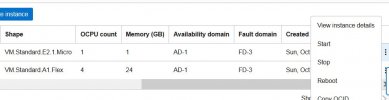
Hey NO its not a 'dumb'question at all. You wont be the first, nor the last to miss the horrizontal scrollbar; and there are plenty who still haven't found the 3dot icons plastered all over their mobile phones, and by the way on the toolbar above where you typed your post..

The page with the instances listed has a scrollbar beneath th list of instances.
Drag to scrollbar to the right unti you see the symbol with 3 dots - sort of a colon with an extra dot.
Click the icon and you get a list of things you can do to that instance see (bad) snip below.
Below the 'Copy OCID' you also get to 'Terminate'

OracleTeminateInstance.JPGOracleTeminateInstance.JPG
 
Last edited:
Has anyone figured out a way to delete unused containers? Or at least to see what resources are being used in the container so they can be removed allowing the removal of the container? Each time I delete a container a few minutes later it comes back active and all I can figure out is there is some resource assigned to the container that I am not able to find.
 
Hey NO its not a 'dumb'question at all. You wont be the first, nor the last to miss the horrizontal scrollbar; and there are plenty who still haven't found the 3dot icons plastered all over their mobile phones, and by the way on the toolbar above where you typed your post..

The page with the instances listed has a scrollbar beneath th list of instances.
Drag to scrollbar to the right unti you see the symbol with 3 dots - sort of a colon with an extra dot.
Click the icon and you get a list of things you can do to that instance see (bad) snip below.
Below the 'Copy OCID' you also get to 'Terminate'

View attachment 4230View attachment 4230
Thank you. I was looking for the terminate on the drop down list right bellow Copy OCID as per Oracle instructions and in my case it wasn't there. I found it by scrolling to the right under the 3 dots.
 
Thank you. I was looking for the terminate on the drop down list right bellow Copy OCID as per Oracle instructions and in my case it wasn't there. I found it by scrolling to the right under the 3 dots.
You'r welcome, The three dots, three dashes, whatever are hardly an intuative as icons go.
 
Get 3CX - Absolutely Free!

Link up your team and customers Phone System Live Chat Video Conferencing

Hosted or Self-managed. Up to 10 users free forever. No credit card. Try risk free.

3CX
A 3CX Account with that email already exists. You will be redirected to the Customer Portal to sign in or reset your password if you've forgotten it.
Back
Top