
You are using an out of date browser. It may not display this or other websites correctly.
You should upgrade or use an alternative browser.
You should upgrade or use an alternative browser.
GOOD NEWS 100GB Cellular Backup plus battery $10/$20 Spectrum
- Thread starter Twilight Sparkle
- Start date
-
- Tags
- backupinternet backupisp

kenn10
Well-Known Member
- Joined
- Dec 16, 2007
- Messages
- 4,666
- Reaction score
- 3,035
I saw another article that states you create your Starlink account and order the equipment. When you go to activate your dish, go to Roam and select the "Standby $5/month" option. A number of people have claimed that you never have to select a full package when you start up. Your mileage may vary. As stated, this is very low speed and you cannot use it for streaming services. It is intended for cell phone to wifi, email. Any heavy downloads will trigger a red flag.

jt1001001
New Member
- Joined
- Jun 20, 2023
- Messages
- 3
- Reaction score
- 2
I currently use the $5 Standby prgram at our remove camp; works for very basic Intenet items and with proper QoS we can hold 1 SIP call. I did have to selelct a full package at startup but after a day/2 days was able to put it in standby for the next billing cycle.
kenn10
Well-Known Member
- Joined
- Dec 16, 2007
- Messages
- 4,666
- Reaction score
- 3,035
Here is a discussion about how to do it. Haven't tried it myself:

wardmundy
Nerd Uno
- Joined
- Oct 12, 2007
- Messages
- 20,288
- Reaction score
- 6,011
Actually streaming Amazon Music to an iPhone while in Roam Standby mode works fine for me with no hiccups.
I don't think Starlink still has the $100 credit when buying direct. What we did was use $50 of the credit the first month, and now we're on the $5 a month credits for the next 10 months. Turned out to be a pretty sweet deal.
GOOD NEWS: You can use our referral code if you like and we both get a free month of service (any speed).
I don't think Starlink still has the $100 credit when buying direct. What we did was use $50 of the credit the first month, and now we're on the $5 a month credits for the next 10 months. Turned out to be a pretty sweet deal.
GOOD NEWS: You can use our referral code if you like and we both get a free month of service (any speed).
Last edited:

Twilight Sparkle
Active Member
- Joined
- Jul 21, 2013
- Messages
- 495
- Reaction score
- 72
well i think when ts time to negotiate prices with spectrum in july this cellular thing is going back or before then, 1st cellular router still didn't work and power port was very lose, new router came, same issue power port lose, you stare at the router and it reboots, you move any cable near it, reboots, rack shakes, reboots, a/c blows on cables .... reboots, both routers had this issue, i just don't understand how they let that pass inspection.
had a what they called a planned maintenance in my area, internet went out for 30 minutes, rep over phone thought i was crazy kept refreshing his screen then he saw it, but the time he saw the outage my internet came back on.
worst part is non rep i speak to not even local spectrum store 20 minutes from me could help, they really have no idea how to get theses to work, they said the only way cellular connects is for there to be an outage but didn't say POWER or just modem outage.... either way i had power and modem issues under 9 days both times cellular didnt come on. then tried to blame cellular signal im like i am talking to you on a spectrum mobile phone that runs on verzion router is right next to me.... i really think you guys didnt provision the esim / sim oh well they cant do anything tell i experience another outage
so im paying for Schrödinger’s Internet: The Spectrum Backup Paradox, pay monthly for a box with either bricks in it or working internet but you wont know tell you open the box and a power outage happens. .
$10 bucks a month i like my odds - i waste more playing lottery and getting a $7 coffee (is it a box of bricks or working internet?) 2 times now under 9 days "Fool me once, shame on you; fool me twice, shame on me." but i have hope *ill wait it out its just $10 a month tell july and gave me $20 credit
had a what they called a planned maintenance in my area, internet went out for 30 minutes, rep over phone thought i was crazy kept refreshing his screen then he saw it, but the time he saw the outage my internet came back on.
worst part is non rep i speak to not even local spectrum store 20 minutes from me could help, they really have no idea how to get theses to work, they said the only way cellular connects is for there to be an outage but didn't say POWER or just modem outage.... either way i had power and modem issues under 9 days both times cellular didnt come on. then tried to blame cellular signal im like i am talking to you on a spectrum mobile phone that runs on verzion router is right next to me.... i really think you guys didnt provision the esim / sim oh well they cant do anything tell i experience another outage
so im paying for Schrödinger’s Internet: The Spectrum Backup Paradox, pay monthly for a box with either bricks in it or working internet but you wont know tell you open the box and a power outage happens. .
$10 bucks a month i like my odds - i waste more playing lottery and getting a $7 coffee (is it a box of bricks or working internet?) 2 times now under 9 days "Fool me once, shame on you; fool me twice, shame on me." but i have hope *ill wait it out its just $10 a month tell july and gave me $20 credit
Last edited:
Twilight Sparkle
Active Member
- Joined
- Jul 21, 2013
- Messages
- 495
- Reaction score
- 72
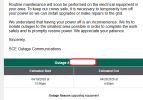
Looks like Spectrum is going to have another chance to get that cellular working. If SCE is sending this for power, that means Spectrum will also go down again like last time.
Not holding my breath I'm 100% sure that cellular isn’t going to work. i do have a power station this time as i felt like this might happen a lot this year so i can have running a/c as its getting hot.
Not holding my breath I'm 100% sure that cellular isn’t going to work. i do have a power station this time as i felt like this might happen a lot this year so i can have running a/c as its getting hot.
Attachments

chris_c_
Active Member
- Joined
- Aug 19, 2010
- Messages
- 666
- Reaction score
- 126
The Spectrum Invincible WiFi system is designed to trigger its cellular backup whenever it detects a loss of either your primary internet signal or electrical power.
You could test it by pulling the Invincible WiFi's power plug from the wall, and see if the LTE/5G internet connection automatically comes online within 15-30 seconds.
You could test it by pulling the Invincible WiFi's power plug from the wall, and see if the LTE/5G internet connection automatically comes online within 15-30 seconds.
wardmundy
Nerd Uno
- Joined
- Oct 12, 2007
- Messages
- 20,288
- Reaction score
- 6,011
For 5G Backup ...
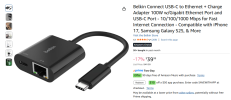
I bought one of these.
View attachment 6348
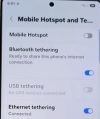
If you use Android's ethernet tethering it is supposed to work.
View attachment 6349
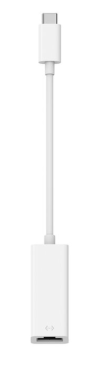
Our less bulky Belkin F2CU040 USB-C to Ethernet adapter works great for Ethernet Tethering with Galaxy Note20 + Mac...
Last edited:

drmurdoch
Member
- Joined
- May 26, 2008
- Messages
- 607
- Reaction score
- 21
Problem with that is the cellphone will run out of battery !Our less bulky Belkin F2CU040 USB-C to Ethernet adapter works great for Ethernet Tethering with Galaxy Note20 + Mac...
View attachment 6351
(most cell phones charge via the USB-C port.
I wonder if wireless charging would work ?

KNERD
Well-Known Member
- Joined
- Mar 9, 2014
- Messages
- 2,058
- Reaction score
- 793
Plenty of laptops have USB C ports, and turn on Internet SharingProblem with that is the cellphone will run out of battery !
(most cell phones charge via the USB-C port.
I wonder if wireless charging would work ?
Twilight Sparkle
Active Member
- Joined
- Jul 21, 2013
- Messages
- 495
- Reaction score
- 72
i did both routers, didnt work. i unplug the modem waited, i unplug the power from battery, still didnt, i contact spectrum they made it sound like they have to send it a signal to activate it. im just waiting for someone who knows how it works or just keep calling tell i get connected with correct support help deskThe Spectrum Invincible WiFi system is designed to trigger its cellular backup whenever it detects a loss of either your primary internet signal or electrical power.
You could test it by pulling the Invincible WiFi's power plug from the wall, and see if the LTE/5G internet connection automatically comes online within 15-30 seconds.
chris_c_
Active Member
- Joined
- Aug 19, 2010
- Messages
- 666
- Reaction score
- 126
Looks like Invincible WiFi 5G backup is working well during power outage for some customers:
drmurdoch
Member
- Joined
- May 26, 2008
- Messages
- 607
- Reaction score
- 21
Do you have a good link that goes over setting up a laptop to perform such a miracle ?Plenty of laptops have USB C ports, and turn on Internet Sharing
Maybe you can just use the ethernet port to the modem or the router ? (ethernet to ethernet).
KNERD
Well-Known Member
- Joined
- Mar 9, 2014
- Messages
- 2,058
- Reaction score
- 793
Windows 11 supports two primary methods for sharing internet: the modern Mobile Hotspot feature for wireless sharing and the legacy Internet Connection Sharing (ICS) for wired (Ethernet) distribution.
Mobile Hotspot Method (Recommended for Wi-Fi/Bluetooth)This built-in feature converts your PC into a router, allowing you to share an active Ethernet, Wi-Fi, or cellular connection with other devices over Wi-Fi or Bluetooth.
Internet Connection Sharing (ICS) Method (For Ethernet-to-Ethernet)ICS uses Network Address Translation (NAT) to route traffic from a source adapter (like Wi-Fi) to a target Ethernet port, acting as a basic router.
- Navigate to Settings > Network & internet > Mobile Hotspot.
- In the Share my Internet connection from dropdown, select the source connection (e.g., Ethernet or Wi-Fi).
- Select Share over (Wi-Fi is default) and click Edit to set a custom network name and password.
- Toggle the Mobile Hotspot switch to On to begin sharing.
- Press Win + R, type ncpa.cpl, and press Enter to open Network Connections.
- Right-click the adapter with the internet source (e.g., Wi-Fi) and select Properties.
- Go to the Sharing tab, check Allow other network users to connect through this computer’s Internet connection.
- In the Home networking connection dropdown, select the Ethernet adapter you wish to share the internet to.
- Click OK; Windows will automatically assign the static IP 192.168.137.1 to the sharing Ethernet adapter.
To share your internet connection on Windows 10, you can use either the Mobile Hotspot feature for wireless sharing or Internet Connection Sharing (ICS) for Ethernet or Bluetooth sharing.
Method 1: Mobile Hotspot (Wireless)
Method 2: Internet Connection Sharing (Ethernet/Network Bridge)
- Press Win + I to open Settings, then select Network & Internet and click Mobile Hotspot.
- Under Share my Internet connection from, choose the active connection (e.g., Ethernet or Wi-Fi).
- Click Edit to set a network name and password, then toggle Share my Internet connection with other devices to On.
- Press Win + R, type ncpa.cpl, and press Enter to open Network Connections.
- Right-click the adapter with internet access, select Properties, and go to the Sharing tab.
- Check the box for Allow other network users to connect through this computer’s Internet connection.
- From the Home networking connection drop-down menu, select the Ethernet adapter to which the client device will connect, then click OK.
- If the connection fails, manually assign a static IP (e.g., 192.168.1.1) to the host's Ethernet adapter and a corresponding IP (e.g., 192.168.1.2) to the client.
Twilight Sparkle
Active Member
- Joined
- Jul 21, 2013
- Messages
- 495
- Reaction score
- 72
the day the power goes out, i am taking it outside to the patio and see if maybe it is a connection issue then. find out Sunday 10pm
I’ve had my Spectrum Mobile Z Fold 6 for about 1 year and 4 months now, I think. Even before I switched to eSIM on this phone z fold 6 (trash phone by the way dont get it overheats and apps close on dex), I was using a SIM card in my OnePlus 7 Pro, and I had the same issue.
At random times, without any warning or alert, both the Z Fold 6 and the OnePlus 7 Pro will lose signal but the phones don’t notify me. They make it seem like I’m still connected when I’m not. Even when I’m using the Uber Driver app, it doesn’t tell me I’ve gone offline. I usually only notice when I take my phone out and see there’s no signal.
I also have issues with Wi-Fi calling not working on Spectrum Mobile Wi-Fi that I can use anywhere. I have to connect to a normal hotspot for it to work.
So I’m wondering if that could be why the cellular on my router isn’t working either?
I’ve had my Spectrum Mobile Z Fold 6 for about 1 year and 4 months now, I think. Even before I switched to eSIM on this phone z fold 6 (trash phone by the way dont get it overheats and apps close on dex), I was using a SIM card in my OnePlus 7 Pro, and I had the same issue.
At random times, without any warning or alert, both the Z Fold 6 and the OnePlus 7 Pro will lose signal but the phones don’t notify me. They make it seem like I’m still connected when I’m not. Even when I’m using the Uber Driver app, it doesn’t tell me I’ve gone offline. I usually only notice when I take my phone out and see there’s no signal.
I also have issues with Wi-Fi calling not working on Spectrum Mobile Wi-Fi that I can use anywhere. I have to connect to a normal hotspot for it to work.
So I’m wondering if that could be why the cellular on my router isn’t working either?
chris_c_
Active Member
- Joined
- Aug 19, 2010
- Messages
- 666
- Reaction score
- 126
WiFi calling from a Spectrum Android smartphone thru a Spectrum Mobile WiFi hotspot should Just Work because it has the WiFi hotspot profile installed. Contact Spectrum Mobile support to let them get WiFi calling thru Spectrum WiFi working for you.the day the power goes out, i am taking it outside to the patio and see if maybe it is a connection issue then. find out Sunday 10pm
I’ve had my Spectrum Mobile Z Fold 6 for about 1 year and 4 months now, I think. Even before I switched to eSIM on this phone z fold 6 (trash phone by the way dont get it overheats and apps close on dex), I was using a SIM card in my OnePlus 7 Pro, and I had the same issue.
At random times, without any warning or alert, both the Z Fold 6 and the OnePlus 7 Pro will lose signal but the phones don’t notify me. They make it seem like I’m still connected when I’m not. Even when I’m using the Uber Driver app, it doesn’t tell me I’ve gone offline. I usually only notice when I take my phone out and see there’s no signal.
I also have issues with Wi-Fi calling not working on Spectrum Mobile Wi-Fi that I can use anywhere. I have to connect to a normal hotspot for it to work.
So I’m wondering if that could be why the cellular on my router isn’t working either?
For the 5G backup, I'd do the following as a full test:
1. Pull the power plug from the wall for the Modem.
2. Pull the power plug from the wall for the Router.
3. Wait until the LED changes from Solid Blue to Solid White, this means the 5G is All Right.
4. Your device WiFi should be connected to internet, try to browse this forum or go to youtube and play a video.
Twilight Sparkle
Active Member
- Joined
- Jul 21, 2013
- Messages
- 495
- Reaction score
- 72
still no luckWiFi calling from a Spectrum Android smartphone thru a Spectrum Mobile WiFi hotspot should Just Work because it has the WiFi hotspot profile installed. Contact Spectrum Mobile support to let them get WiFi calling thru Spectrum WiFi working for you.
For the 5G backup, I'd do the following as a full test:
1. Pull the power plug from the wall for the Modem.
2. Pull the power plug from the wall for the Router.
3. Wait until the LED changes from Solid Blue to Solid White, this means the 5G is All Right.
4. Your device WiFi should be connected to internet, try to browse this forum or go to youtube and play a video.
Twilight Sparkle
Active Member
- Joined
- Jul 21, 2013
- Messages
- 495
- Reaction score
- 72
Part 2 taking it on the road near 2 cell towers for the whole townstill no lucki might take it cross town see what it does


Get 3CX - Absolutely Free!
Link up your team and customers  Phone System Live Chat Video Conferencing
Hosted or Self-managed. Up to 10 users free forever. No credit card. Try risk free.

Verify your Email
Check your inbox!
We’ve sent you an email. Click on the button in the email body to verify your email address – (if you can not find it, check your spam folder).
Upon verification you will be directed to the 3CX setup wizard.