Ok editing a making templates through Settings > Product Configuration Editor works where I was trying via Template Manager > Edit and then trying to edit the files that way. Thank you very much it was just a lack of knowledge on my part.

You are using an out of date browser. It may not display this or other websites correctly.
You should upgrade or use an alternative browser.
You should upgrade or use an alternative browser.
NEW OSS EPM for FreePBX 16 & iPBX 2027
- Thread starter billsimon
- Start date
Not really, the OSS EPM module has a lot of bugs and it looks like you found one. Even though you guys are using it from my github repo I need to make clear that I only put in bare minimum effort to make it work on FreePBX16 and furthermore I don't use it at all for any production-level purpose.Thank you very much it was just a lack of knowledge on my part.
The code has been dragged forward from older versions of FreePBX and accumulated a pile of tech debt along the way. In short, it's in need of a caring maintainer or at least contributors who will submit fixes to my repo which I will gladly accept.

krzykat
Telecom Strategist
- Joined
- Aug 2, 2008
- Messages
- 3,208
- Reaction score
- 1,288
Hey @billsimon, yes, I need to do a pull request to add some updates that we've encountered.
@SudoSu - yes its almost become one of those apps that if you know how to use it, its good, but if you dont ... its not real useful.
@SudoSu - yes its almost become one of those apps that if you know how to use it, its good, but if you dont ... its not real useful.

infotech
New Member
- Joined
- Apr 16, 2023
- Messages
- 5
- Reaction score
- 1
Hey guys,
I have a Cisco CP-8841 that I would like to use. But I don't see the model in the list to select. The next closest one is the Cisco SIP 79x0 Models [7940,7960] but when I try to install that I get '0% (Error: HTTP/1.1 404 Not Found!)' Packet Server is set to: 'http://provision.lol/'. I added a custom OUI because mine wasn't there. I have come a long way to give up now lol. I know nothing about these systems and I'm learning as I go. This is all installed on a Raspberry pie 4B.
I have a Cisco CP-8841 that I would like to use. But I don't see the model in the list to select. The next closest one is the Cisco SIP 79x0 Models [7940,7960] but when I try to install that I get '0% (Error: HTTP/1.1 404 Not Found!)' Packet Server is set to: 'http://provision.lol/'. I added a custom OUI because mine wasn't there. I have come a long way to give up now lol. I know nothing about these systems and I'm learning as I go. This is all installed on a Raspberry pie 4B.
infotech
New Member
- Joined
- Apr 16, 2023
- Messages
- 5
- Reaction score
- 1
At this stage I have tried everything. I'm happy to pay someone to get my phone provision now lol.I got 8861 series to work using the 7975G-9.X package from OSS. I'd say try a different one or maybe now that you've gotten the Master file downloaded swap the package server back to the default and see how it goes.
Idk if there is a better thread for troubleshooting but if someone wants to point it out I'll stop posting in here.
Infotech just for clarification are you getting the 404 when you click Enable on the models or when you click FW Install?
And you said you tried setting your package server to http://mirror.freepbx.org/provisioner/v3/ and reloading and it still 404s?
Infotech just for clarification are you getting the 404 when you click Enable on the models or when you click FW Install?
And you said you tried setting your package server to http://mirror.freepbx.org/provisioner/v3/ and reloading and it still 404s?
infotech
New Member
- Joined
- Apr 16, 2023
- Messages
- 5
- Reaction score
- 1
I get the error when I click on FW Install but it seems to install anyway.
This is my SEP Config file. It is saved as cnf.xml
I have only one home land line and one person to configure 'Reception' at 703.
I'm not sure if I am doing it right but I t*f*t*p the file from my desktop computer to the phone and then change phone's t*f*t*p server back to my PBX server and gave the phone a restart. On phone it cycles 'phone is registering' and 'unprovisioned' If anyone can help me, I would really appreciate it.
This is my SEP Config file. It is saved as cnf.xml
I have only one home land line and one person to configure 'Reception' at 703.
I'm not sure if I am doing it right but I t*f*t*p the file from my desktop computer to the phone and then change phone's t*f*t*p server back to my PBX server and gave the phone a restart. On phone it cycles 'phone is registering' and 'unprovisioned' If anyone can help me, I would really appreciate it.
Attachments

dallas
Well-Known Member
- Joined
- Oct 21, 2007
- Messages
- 1,032
- Reaction score
- 331
what does the asterisk log show when the phone tries to register?On phone it cycles 'phone is registering' and 'unprovisioned'
dallas
Well-Known Member
- Joined
- Oct 21, 2007
- Messages
- 1,032
- Reaction score
- 331
I don't see any registration attempts in that file.That's the log file. I tried attahing as text file but it didn't let me upload it.

KNERD
Well-Known Member
- Joined
- Mar 9, 2014
- Messages
- 2,112
- Reaction score
- 821
Pastebin is much easierThat's the log file. I tried attahing as text file but it didn't let me upload it.

AndrewStock
New Member
- Joined
- May 8, 2023
- Messages
- 23
- Reaction score
- 4
Hello All,
I follow these instructions:
Once installed, open FreePBX GUI and navigate to Settings -> OSS Endpoint Manager.
Click on Settings and enter http://provision.lol/ for Package Server.
Click on Options icon and choose Package Manager. Once it opens, click Check for Updates button.
When I do the instructions, I don't get:
Click on Settings and enter http://provision.lol/ for Package Server.
Not sure where to go from here. Any help is appreciated.
Thanks.
Andrew Stock
I follow these instructions:
Once installed, open FreePBX GUI and navigate to Settings -> OSS Endpoint Manager.
Click on Settings and enter http://provision.lol/ for Package Server.
Click on Options icon and choose Package Manager. Once it opens, click Check for Updates button.
When I do the instructions, I don't get:
Click on Settings and enter http://provision.lol/ for Package Server.
Not sure where to go from here. Any help is appreciated.
Thanks.
Andrew Stock
AndrewStock
New Member
- Joined
- May 8, 2023
- Messages
- 23
- Reaction score
- 4
It would be nice to have module included and made easy to install on an existing install. Everytime I follow instructions I can find online it tells me to download from github. Which I find is not an easy thing to do. There does not seem to be a tar file to download and automatically install.If we start adding OSS EPM back into Incredible PBX 2027 builds, perhaps it will light a fire in a few companies to work on this. This is mostly a corporate tool anyway.
I have posted a previous note about following the instructions that Ward has published, but I don't get the Click on Settings and enter http://provision.lol/ for Package Server.
Any ideas on how I can get to that point even.
Thanks.
If I am understanding correctly this is what you are looking for. In my picture where you see "http://mirror.freepbx.org/provisioner/v3/" is the spot you need to have "http://provision.lol".Hello All,
I follow these instructions:
Once installed, open FreePBX GUI and navigate to Settings -> OSS Endpoint Manager.
Click on Settings and enter http://provision.lol/ for Package Server.
Click on Options icon and choose Package Manager. Once it opens, click Check for Updates button.
When I do the instructions, I don't get:
Click on Settings and enter http://provision.lol/ for Package Server.
Not sure where to go from here. Any help is appreciated.
Thanks.
Andrew Stock
Attachments
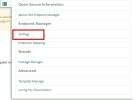
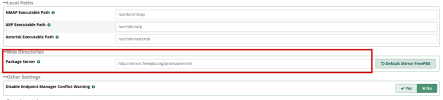

wardmundy
Nerd Uno
- Joined
- Oct 12, 2007
- Messages
- 20,420
- Reaction score
- 6,142
It would be nice to have module included and made easy to install on an existing install. Everytime I follow instructions I can find online it tells me to download from github. Which I find is not an easy thing to do. There does not seem to be a tar file to download and automatically install.
I have posted a previous note about following the instructions that Ward has published, but I don't get the Click on Settings and enter http://provision.lol/ for Package Server.
Any ideas on how I can get to that point even.
Thanks.
pCloud - OSS-EPM
AndrewStock
New Member
- Joined
- May 8, 2023
- Messages
- 23
- Reaction score
- 4
Thank you.If I am understanding correctly this is what you are looking for. In my picture where you see "http://mirror.freepbx.org/provisioner/v3/" is the spot you need to have "http://provision.lol".
However, I don't even get to that part.
If I click on those links, they do not appear to be valid links any longer.
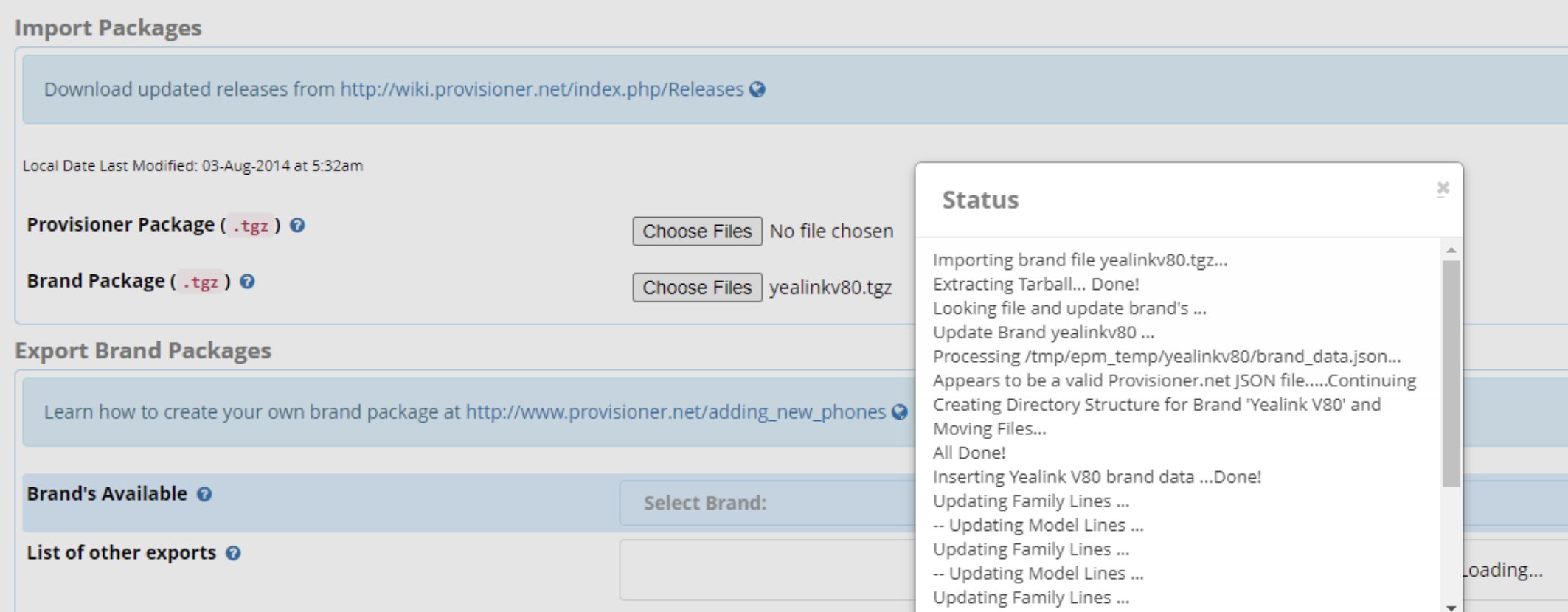
Where can the Provisioner Package be downloaded from? Where can the Brand Package tgr's be downloaded from? I cannot find them anywhere.
Thanks.
AndrewStock
New Member
- Joined
- May 8, 2023
- Messages
- 23
- Reaction score
- 4
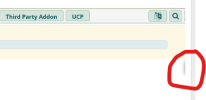
This is what I get when I go to >>Settings >>OSS Endpoint Manager
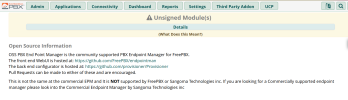

kenn10
Well-Known Member
- Joined
- Dec 16, 2007
- Messages
- 4,712
- Reaction score
- 3,087
First, Log into your system as root and run ./sig-fix to remove the unsigned module warning. You will see this:
After that, go to the endpoint manager in the gui and on the right side of the screen, click on the menu icon which is cut off in your snapshot above to access other options.
Code:
$ ./sig-fix
Running Incredible PBX shutdown...

Running Asterisk pre from Core module
Stopping Call Transfer Monitoring Service
Running Asterisk pre from Ucp module
UCP Node Server is not running
Shutting down Asterisk Gracefully. Will forcefully kill after 30 seconds.
Press C to Cancel
Press N to shut down NOW
[============================] < 1 sec
Running Incredible PBX startup...
Starting Asterisk...
[============================] 3 secs
Asterisk Started
Running Asterisk post from Core module
Starting Call Transfer Monitoring Service
Running Asterisk post from Ucp module
Starting UCP Node Server...
[>---------------------------] 1 sec
Started UCP Node Server. PID is 1883211
WARNING: Always run Incredible PBX behind a secure firewall.
After that, go to the endpoint manager in the gui and on the right side of the screen, click on the menu icon which is cut off in your snapshot above to access other options.
AndrewStock
New Member
- Joined
- May 8, 2023
- Messages
- 23
- Reaction score
- 4
Thank you very much for the point out. I got it now! 


Forum statistics
Get 3CX - Absolutely Free!
Link up your team and customers  Phone System Live Chat Video Conferencing
Hosted or Self-managed. Up to 10 users free forever. No credit card. Try risk free.

Verify your Email
Check your inbox!
We’ve sent you an email. Click on the button in the email body to verify your email address – (if you can not find it, check your spam folder).
Upon verification you will be directed to the 3CX setup wizard.