@billsimon and I worked over the weekend on a VoIP.ms solution using Bill's new
SMS Connector module that did not require Apache config changes, HTTPS, TLS certificates, FQDNs, and firewall adjustments to get incoming SMS messages delivered in the User Control Panel or with Sangoma and ClearlyIP SIP phones. Bill came up with a solution if you'd like to try it.
FOR NON-BUSINESS PIONEERS ONLY:
AT VoIP.ms...
1. Create a subaccount and trunk at VoIP.ms
2. At VoIP.ms, enable SMS on the trunk and Link SMS Messages received on this Trunk to your SubAccount
3. At VoIP.ms, enable API, create an API Password, and Whitelist the public IP address of your Incredible PBX server
4. Copy your VoIP.ms email address and API Password for use on your server's SMS setup
On Your Incredible PBX server...
1. Login to the FreePBX GUI as admin
2. Create a PJsip Trunk for VoIP.ms
3. In Advanced Settings, set Message Context to
voipms-sms-in
4. In Admin -> User Management, create a password for extension 701
5. Add the following context to the end of /etc/asterisk/extensions_custom.conf
Code:
[voipms-sms-in]
exten => _.,1,NoOp(Inbound Voip.ms SMS dialplan invoked)
same => n,Set(TO=${MESSAGE_DATA(X-SMS-To)})
same => n,Set(FROM=${CUT(MESSAGE(from),\",2)})
same => n,Set(ENV(QUERY_STRING)=provider=voipms\;to=${TO}\;from=${FROM}\;message=${URIENCODE(${MESSAGE(body)})})
same => n,Set(ENV(REQUEST_METHOD)=GET)
same => n,System(php /var/www/html/smsconn/provider.php)
same => n,Set(ENV(QUERY_STRING)=)
same => n,Hangup()
;-------------------------------------------------------------------------
6. Reload your dialplan:
rm /tmp/* ; fwconsole reload
Install and Configure SMS Connector Module...
1. Login to your server as root and issue the following commands:
Code:
fwconsole ma downloadinstall https://filedn.com/lBgbGypMOdDm8PWOoOiBR7j/SMSconnector/smsconnector-16.0.11.tar.gz
fwconsole reload
2. In the FreePBX GUI, navigate to Connectivity -> SMS Connector
3. Click Provider Settings and enter your email address for Username and API Secret for VoIP.ms. Click Submit.
4. In SMS Connector menu, click Add Number and enter your DID and PJsip extension 701 to associate with it.
5. Enter VoIP.ms as Provider and click Save Changes.
Using User Control Panel...
1. If you have not already done so, apply these UCP patches for Incredible PBX:
Code:
mysql -u root -ppassw0rd asterisk -e "update freepbx_settings set value = 'Latest-16' where keyword = 'MIRROR_BRAND_VERSION'; "
mysql -u root -ppassw0rd asterisk -e "update admin set value = 'true' where variable = 'need_reload'; "
rm -f /tmp/*
fwconsole reload
fwconsole ma downloadinstall ucp
rm -f /tmp/*
fwconsole reload
2. Open UCP from FreePBX GUI
3. Login as 701 with your new password
4. Click + in Upper Left of display and add SMS Module for 701.
5. When SMS Module appears on UCP console, click Start Conversation
6. Send a test message to your cellphone
7. Reply to the SMS message from your cellphone
8. Reply should appear in UCP within 20-30 seconds
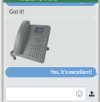
View attachment 5202







 Phone System