

elastix
Moderator
- Joined
- May 9, 2017
- Messages
- 36
- Reaction score
- 0
Configuring any of the supported door phones is a walk in the park with Elastix. You just need to follow our guide and once provisioned, your selected door phone is ready to use as just another extension on your PBX. Supported devices include popular SIP door phones from brands like Fanvil, CyberData and Alphatech. In this example use case, we are using a Fanvil iSeries Door Phone.
How to configure a Fanvil iSeries Door Phone
For this use case, we won’t go into details about the physical installation and configuration of the door phone. For this specific device you can follow the Fanvil quick start guide here and:
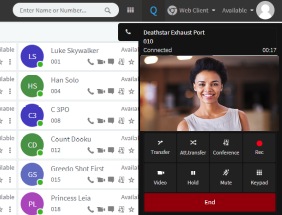
When visitors arrive at your door, they can press the speed-dial button set to your extension and you will receive a video call via the Web Client. Even if you are not in front of your PC, you can use the 3CX App for Android or iOS to answer the audio or video call and then decide to open the door or not.
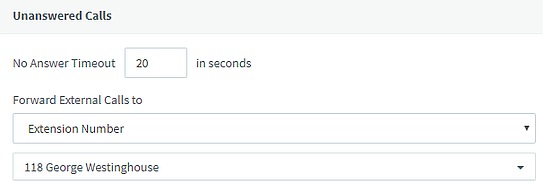
If you are not always available or at your desk, you can set up forwarding rules in Web Client to forward the call to an available colleague. Alternatively, you can forward the visitor’s call to a ring group and have multiple extensions handling visitors calls. The call from the door phone will be forwarded to the next available extension until it gets answered. You can also configure the door phone extension as a prioritized queue, making sure that visitor calls are always handled promptly.
Endless Possibilities
Just a glimpse of what you can do by integrating a door phone with your Elastix PBX:
Check the complete list of supported door phone devices that can be used with your PBX and be a door opener.
The post How to Integrate Your Door Phone with the Web Client appeared first on Elastix.
Continue reading...
How to configure a Fanvil iSeries Door Phone
For this use case, we won’t go into details about the physical installation and configuration of the door phone. For this specific device you can follow the Fanvil quick start guide here and:
- Connect it on your network, ensuring it has the most recent firmware.
- In case you’ve configured this door phone before, bring it back to its factory default setting following this guide.
- To provision the door phone via Plug’n’nPlay, go to “Phones” in the Management Console.
The connected device will be marked in Bold. - Click on the bold entry and choose either “Assign Ext” to assign it to an existing extension or “Add Ext” to add a new one.
- Provision the Fanvil i20 for the selected extension and click “OK”.
- The door phone will be configured automatically and reboot to finalize the setup.
When visitors arrive at your door, they can press the speed-dial button set to your extension and you will receive a video call via the Web Client. Even if you are not in front of your PC, you can use the 3CX App for Android or iOS to answer the audio or video call and then decide to open the door or not.
If you are not always available or at your desk, you can set up forwarding rules in Web Client to forward the call to an available colleague. Alternatively, you can forward the visitor’s call to a ring group and have multiple extensions handling visitors calls. The call from the door phone will be forwarded to the next available extension until it gets answered. You can also configure the door phone extension as a prioritized queue, making sure that visitor calls are always handled promptly.
Endless Possibilities
Just a glimpse of what you can do by integrating a door phone with your Elastix PBX:
- Waiting for the delivery man and want to monitor the entrance? Use the Web Client or the 3CX App for Android or iOS to video call the door phone.
- Want to provide unattended access while keeping control of the users? Provide them with RFID cards or configure an access code to provide them with controlled access.
- Need to control the access to the warehouse? Install the door phone and connect it to an electronic lock to restrict access to any controlled area.
Check the complete list of supported door phone devices that can be used with your PBX and be a door opener.
The post How to Integrate Your Door Phone with the Web Client appeared first on Elastix.
Continue reading...


 Phone System