NEW iPBX 2021D+FAX for Proxmox and VirtualBox

AndyInNYC

Active Member
Joined
May 23, 2013
Messages
828
Reaction score
133
I presently have Incredible PBX 15.0.16.27.

I'm setting up a Proxmox hosted Incredible PBX 2021 15.0.37.9

I'd like to be as lazy as possible, but I realize setting voicemail to email and all the things I've long since forgotten will be manual, but I'd love to have my extensions, incoming routes, trunks, destinations, Avantfax, etc. restored from a backup.

Is there a backup/restore that will work between systems with this much age between them or am I better off cutting and pasting between GUIs running on side by side screens?


Andrew
 
All the FreePBX stuff will move across with a FreePBX backup from the old to new. You can restore a backup from FreePBX-13 to a FreePBX-17 system. They try to keep backup/restore backwards compatible as far back as reasonably possible.

Advantfax and other add-ons are another concern, however, and will require manual reinstallation. Even so, you'll have a badly outdated system with IncrediblePBX-2021 but I know Advantfax is your holdback to modernizing.
 
Gee, it's only 2024 - why would anyone still need to send or receive faxes? But I do.

Can you define what I'm losing in the sense of having a 'badly outdated system'? Phones ring, voice to email works, conferencing works, etc.

Heck, I'm setting up the Panasonic phones you suggested and those aren't even sold new any longer. Call me old fashioned?

If I weren't trying to consolidate machines using Proxmox, I'm not sure I'd upgrade until something physically broke.

Andrew
 
All our production level PBXs run on Incredible PBX 2021 15.0.37.9
(Our own signature being 'iPBX-2021.01_Deb-10.13_Ast-18.17.1_GUI-15.0.22.38')

It's the most trouble free setup that we have ever configured for our own needs - including lightweight faxing, to the point that we decided to freeze the configuration at this stage and never change anything, not even apply further updates, until such time we have a comparably stable functionally enhanced future version.

Both 2027 and 2024 releases of IncrediblePBX have brought some instability issues along, which we are still struggling to fix.

If you have a prior version that you are happy with and you are moving to another version just because you are moving your host to proxmox, consider simply virtualizing your platform, as-is!
Since we moved to proxmox based blades several years ago we have virtualized so many machines I can't count. We eventually succeeded to get all of them to work flawlessly. We currently even have some instances running windows xp or ubuntu 14.04 (with specialty custom apps that we designed decades ago)
 
Gee, it's only 2024 - why would anyone still need to send or receive faxes? But I do.

Can you define what I'm losing in the sense of having a 'badly outdated system'? Phones ring, voice to email works, conferencing works, etc.

Heck, I'm setting up the Panasonic phones you suggested and those aren't even sold new any longer. Call me old fashioned?

If I weren't trying to consolidate machines using Proxmox, I'm not sure I'd upgrade until something physically broke.

Andrew
Whatever works for you is all you need. :rolleyes:
 
For a Linux based physical host the most dependable way is to use dd or one of its variants like dcfldd or dc3dd to copy the system disk of your host all-together to a raw virtual disk. Then use the raw disk as a storage resource to a new virtual machine under proxmox. Make sure that the virtual machine config through proxmox GUI has same or similar components (like CPU, RAM, Ethernet, etc.)
When you fire up the proxmox instance, the Linux OS will reconfigure itself as needed to adjust to the new pseudo-hardware realm.
Unless you have specialty hardware which might require physical pass through or more, your virtual machine will get going. The first start might be a bit longer, then it will be faster.
Once it's operational you may opt to optimize your device settings, like replacing your network device with a virtio version, or your (s)ata controller to a virtio model, but you don't even have to if you're not after subtle performance gains.
 
In my previous post I forgot to mention how you could access the qcow2 virtual disk created on proxmox.
There are two ways.

First, you can fire up the virtual machine with a live Debian, Ubuntu or LinuxMint CD/DVD ISO.
Once it's up and running don't bother to install the OS on the virtual disk because it will be overwritten by your host's image anyway.
Just bring up gparted on the live OS. Set the qcow2 virtual disk to gpt and make a single ext4 partition using all the available space.
Make sure that you know the IP address of the live virtual machine instance, because you will use it as the target IP address for your dd copy.

Go to your host system (physical PBX) whose system disk is to be virtualized. Start it with a live CD/DVD or Flash-USB of Debian, Ubuntu or Linux Mint too.
Open a terminal and run your dd command with input from your local host's system drive (like if=/dev/sda where your PBX is installed) to a remote output (like /dev/sda on the proxmox live vm instance) using its IP address.
The command will look something like:
sudo dd if=/dev/sda bs=1M oflag=sync status=progress | ssh root@vps-IP dd of=/dev/sda bs=1M oflag=sync

if=/dev/sda refers to the physical disk drive of the PBX which is being virtualized
of=/dev/sda refers to the qcow2 virtual disk which is mounted on the proxmox VM
vps-IP is the IP address of the proxmox VM while it is running the live OS

Then wait until the copy is done. And that's all there is to it!

The second method is to mount the virtual disk of the proxmox vm on your physical host (PBX) with help of an external USB drive. You copy the freshly created, empty qcow2 virtual disk (which is actually a simple big file) onto your external USB drive. You move it to your physical host (PBX) and attach it.

You start your physical host with a live Linux OS like explained before.
On the live session you run the following steps (from our support notebook):

How to mount mount a qcow2 compressed kvm virtual disk image in Debian, Ubuntu or LinuxMint using the qemu-nbd tool.

To install qemu-nbd run the following command in a terminal window:
sudo apt-get install qemu-utils

Next, let’s load the network block device (nbd) kernel module (remove it first then reload it with the partition parameter):
sudo rmmod nbd
sudo modprobe nbd max_part=16

Then let’s run qemu-nbd, which is a user space loopback block device server for qemu supported disk images.
Basically, it knows all about weird disk image formats, and presents them to the kernel via nbd, and ultimately to the rest of the system as if they were standard disks. So, let’s attach the MyKvmDisk.qcow2 image to one of the nbd slots we’ve just created:
sudo qemu-nbd -c /dev/nbd0 MyKvmDisk.qcow2

Now, we have a /dev/nbd0 block device, along with several /dev/nbd0p* partition device nodes that can be mounted with the standard mount tool:
sudo mkdir /mnt/NBD0P1
sudo mount /dev/nbd0p1 /mnt/NBD0P1

And they can be used like any other volume!

Four our purpose here it will be used as the target volume when running dd.
if will still point at /dev/sda
of will point at /dev/nbd0

When we’re done using them, they should be properly unmounted, disconnected and attachment point removed:
sudo umount /dev/nbd0p1
sudo qemu-nbd -d /dev/nbd0

sudo rmdir /mnt/NBD0P1

It sounds complicated but it really isn't. It's fairly basic Linux stuff. Just make sure that your dd command is accurate when it comes to the source and destination drives. Any mistake might cost you data loss.
 
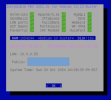
@AndyInNYC: If you're interested, we have a Proxmox backup of an Incredible PBX 2021-D platform with Incredible Fax already enabled. You simply need to put the image in /var/lib/vz/dump and put the Debian 10.13 ISO in /var/lib/vz/template/iso.

Then you can run qmrestore vzdump-qemu-ipbx2021dfax.vma.gz 777 to create a 777 VM. For Incredible Fax, go to /root and run avantfax-email-change to set the email address for delivery of faxes. Then run avantfax-pw-change to set the admin password for access to the AvantFax GUI. Run admin-pw-change to set the FreePBX admin password.

Refresh DHCP: For use on same server or multiple VMs: rm /var/lib/dhcp/dhclient* && reboot

If you need either the vzdump file (4.2GB) or the Debian 10.13 ISO (3.5MB), here are the links.

Might need a little FreePBX cleanup but nothing you can't handle.

Screenshot from 2024-10-20 16-32-44.png
 
Last edited:
Thanks, Ward. I’ve already installed your Proxmox image.

I’ve created a freepbx backup and will try a restore.

The idea of virtualizing my existing machine, however, also has some value.

Given I have Proxmox running, creating and killing virtual machines is (mostly) easy.

Andrew
 
Question: I have a 120GB SSD as the boot drive in my current PBX. This normally means my Clonezilla backup must be restored on a disk at least as big.

Is there a different way to virtualize the current machine into a 30GB (or whatever size) Proxmox container?

Not sure how to move to a vastly smaller disk size. All my recorded calls are saved to a different machine so I don't need space on this machine for those.

lsblk returns:
Code:
NAME            MAJ:MIN RM   SIZE RO TYPE MOUNTPOINT
sda               8:0    0 111.8G  0 disk
├─sda1            8:1    0     1G  0 part /boot
└─sda2            8:2    0 110.8G  0 part
  ├─centos-root 253:0    0    50G  0 lvm  /
  ├─centos-swap 253:1    0   3.9G  0 lvm  [SWAP]
  └─centos-home 253:2    0  56.9G  0 lvm  /home
WARNING: Always run Incredible PBX behind a secure firewall.

As always, thanks.

Andrew
 
Question: I have a 120GB SSD as the boot drive in my current PBX. This normally means my Clonezilla backup must be restored on a disk at least as big.

Is there a different way to virtualize the current machine into a 30GB (or whatever size) Proxmox container?

Not sure how to move to a vastly smaller disk size. All my recorded calls are saved to a different machine so I don't need space on this machine for those.

lsblk returns:
Code:
NAME            MAJ:MIN RM   SIZE RO TYPE MOUNTPOINT
sda               8:0    0 111.8G  0 disk
├─sda1            8:1    0     1G  0 part /boot
└─sda2            8:2    0 110.8G  0 part
  ├─centos-root 253:0    0    50G  0 lvm  /
  ├─centos-swap 253:1    0   3.9G  0 lvm  [SWAP]
  └─centos-home 253:2    0  56.9G  0 lvm  /home
WARNING: Always run Incredible PBX behind a secure firewall.

As always, thanks.

Andrew
You need to shrink the current PBX to 30GB(shrink sda2) and then you can use Clonezilla, shrinking it can be tricky and potentially can make a mess. I think is easier to just restore using the same size VM in Proxmox. When you create the VM in Proxmox you can attach a Clonezilla iso to the VM and then you can run Clonezilla that way. I love Proxmox for the same reason you do, easy to experiment with VMs and you can do it even remotely.
 
Question: I have a 120GB SSD as the boot drive in my current PBX. This normally means my Clonezilla backup must be restored on a disk at least as big.

Is there a different way to virtualize the current machine into a 30GB (or whatever size) Proxmox container?
...
Assuming that your system partition is ext3 or ext4, the easiest and SAFEST way to shrink the size of your system partition is to use gparted while your machine is started from a live distro CD/DVD/FlashDisk.

I recommend LinuxMint for that task. Start your machine with the live OS. The system partition which holds your PBX will be untouched, unmounted, etc.

While running LinuxMint in live mode (which you do not install), you bring up gparted (partition manager) GUI.
It will show you your disks and partitions. Your PBX partition will probably be /dev/sda1 or /dev/nvme0p1.
Once you found it, through the gparted GUI resize it to whatever minimum (plus some margin) you want.

All that you have to do is to right click on the partition and select resize. Once the resize window is up, you can drag the right hand side limit to the left in order to shrink or to the right in order to enlarge. Do not touch the left hand side handle at all (which would cause all the data in the partition to move, and you do not want that as it is very time consuming). If you can't move the limit/handle, either the partition is in use or it is mounted, or the drive is in read only mode. Gparted won't let you to shrink the partition to less than the amount of data already present in the partition. But give yourself some additional empty space. Don't push it too low, otherwise you won't be able to start it later (without resizing it up), especially if you use a dynamic swap file.

Before shrinking gparted will check the integrity of the partition and size down only if it is feasible. It takes a bit of time, but it works beautifully. And it's the safest way you can d it!

Then do your backup, whatever.

If you need to bring it back to the original size, assuming that you didn't use the saved space for something else (like a new partition), you can do it the same way, except you expand it instead of shrinking. You can expand as long as the available space is adjacent to the resized partition.

gparted can't resize (and you shouldn't either by manual resizing methods) a partition which is mounted and/or is in use. Thus the necessity to start your system with a live distro.

When you handle gparted, just make sure that you are sure which partition you need to resize. Even if you have only one drive, it could be sda1 or sda2 (BIOS boot or EFI boot). So, check and double check!
 
Last edited:
FOR THOSE THAT NEED SEAMLESS FAXING WITH THE GOLD STANDARD...

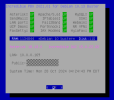
We finally have managed to convert the IncrediblePBX2021D-FAX image for Proxmox into a working image for VirtualBox.
The .ova image (4.2GB) has finished uploading to the repository. Here is download link. Tutorial available here.

Default root password: password
FreePBX admin password: set with /root/admin-pw-change
AvantFax admin password: set with /root/avantfax-pw-change
AvantFax email for delivery of faxes: set with /root/avantfax-email-change
Configure Gmail SmartHost: /root/enable-gmail-smarthost-for-sendmail using Gmail name and Gmail app password
Configure time zone: /root/timezone-setup
Change root password: passwd

Screenshot from 2024-10-28 16-29-38.png
 
Last edited:

Members online

Forum statistics

Threads
26,687
Messages
174,411
Members
20,257
Latest member
Dempan
Get 3CX - Absolutely Free!

Link up your team and customers Phone System Live Chat Video Conferencing

Hosted or Self-managed. Up to 10 users free forever. No credit card. Try risk free.

3CX
A 3CX Account with that email already exists. You will be redirected to the Customer Portal to sign in or reset your password if you've forgotten it.
Back
Top